---
title: How to connect Google & Facebook ad accounts to Looker Studio?
description: How to connect Google & Facebook ad accounts to Looker Studio?
---
[Skip to content](https://support.clickx.io/migration/how-to-connect-google-facebook-ad-account-to-looker-studio#main-content)
English
Show submenu for translations

- [Default HubSpot Blog](https://info.clickx.io/blog)
Open main navigation
Close main navigation
- [Default HubSpot Blog](https://info.clickx.io/blog)
- English
Show submenu for translations
- Contact us
Contact us
How can we help you?
- There are no suggestions because the search field is empty.
1. [Clickx Help Center](https://support.clickx.io/migration?hsLang=en)
2. [Clickx 101](https://support.clickx.io/migration/clickx-101?hsLang=en)
# How to connect Google & Facebook ad accounts to Looker Studio?
#### **How to connect to Google Ads to Looker Studio:**
- Sign in to Looker Studio. ([https://lookerstudio.google.com/](https://lookerstudio.google.com/) )
- On the Looker Studio home page, click on Add Data and then select Data Source.

- Select the Google Ads connector.
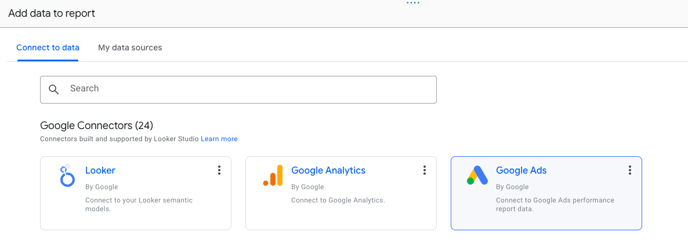
- If prompted to grant Looker Studio access to your account, click **AUTHORIZE**.
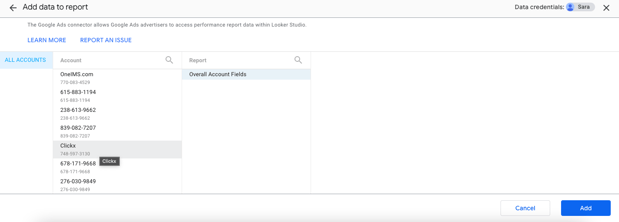
- Click **ALL ACCOUNTS**.
- Select an account. You can search by account ID or by name.
- Select *Overall Account Fields. And hit Add.*
#### **How to connect to Facebook Ads to Looker Studio**
- Sign in to Looker Studio. ([https://lookerstudio.google.com/](https://lookerstudio.google.com/) )
- On the Looker Studio home page, click on Add Data and then select Data Source.

- Open the Supermetrics Looker Studio data source gallery. ([https://supermetrics.com/products/looker-studio#data-source-section](https://supermetrics.com/products/looker-studio#data-source-section) )
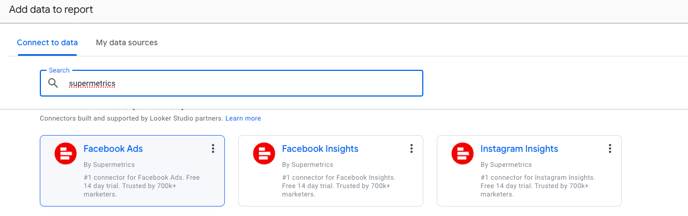
- Navigate to Facebook Ads and click Start free trial.
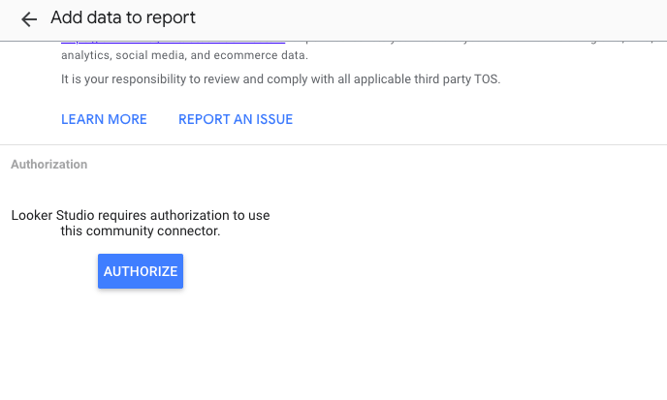
- You'll see two buttons that read Authorize. If you're using Supermetrics for the first time, click the left-hand one and log in with the Google Account you use with Supermetrics.
- Once that's done, or if you've done it before, click the right-hand Authorize button (under "Facebook Ads requires authorization to connect to data").
- Select a team that has access to the account you want to connect.
- Choose to make this connection [shared or private](https://support.supermetrics.com/support/solutions/articles/19000132107).
- Click Start.
- Either log in with a new Facebook account, or click Continue as to go ahead with the account you're already logged in to.
- Select the Businesses and Pages you want to include in your reporting.
- Review the permissions, and click Save.
- Click Got it and click Done.
- Select the account you'd like to include in your reporting.
- [Clickx 101](https://support.clickx.io/migration/clickx-101?hsLang=en)
- [Clickx Fulfillment Network](https://support.clickx.io/migration/clickx-fulfillment-network?hsLang=en)
- [Email Prospecting](https://support.clickx.io/migration/email-prospecting?hsLang=en)
- [Google Maps SEO](https://support.clickx.io/migration/google-maps-seo?hsLang=en)
- [Default HubSpot Blog](https://info.clickx.io/blog)
[](http://clickx.io?hsLang=en)
[mailto:email@email.com](mailto:email@email.com)
Copyright © 2026, Clickx